



Glasses Fog Inside a VR Headset: Reduce Temperature and Fit Conflicts
To stop VR headset fog on glasses, start with warmth and airflow. Let a cold headset warm up to room temperature, play in a warm room, and point a fan at yourself during active games. Then check fit and clearance separately, and only use a cleaner or anti-fog product if your lens maker and your headset maker both allow it.
Fog usually comes from warm, moist breath landing on a cooler surface. A headset that sits too low or presses on your frames can make the problem worse. Changing one thing at a time shows you which fix actually works for your setup.
Why Glasses Fog Inside a VR Headset
Two separate things can be at work here. One is temperature and moisture. The other is how the headset sits on your face and over your frames. Either one can matter, and neither is the cause every time.
Warm, Moist Air Meets Cooler Optics
Meta says fog forms on Quest headset lenses when warm, moisture-filled breath meets cooler lenses. In most cases, it clears as the air and lenses reach the same temperature during use. That guidance is about the headset's own optics. It is not a test of prescription glasses.
Your eyeglass lenses sit in the same closed, breath-warmed space, though. So the same basic idea is a likely explanation for glasses fog too. If fog shows up mostly in the first few minutes, after the headset was stored somewhere cold, or during sweaty games, temperature and moisture are good suspects.

Fit and Clearance Are a Separate Clue
Headset position changes how air moves around your nose. Meta notes that a headset sitting too low can trap moisture from your nose and add to fogging. Clearance matters too. On the Quest 3, eye-relief controls change how far the headset lenses sit from your face or eyeglasses.
If your frames feel pressed against your face, or the headset feels tight around the nose, treat that as a fit clue worth testing. Pressure alone doesn't prove it's causing the fog. It does tell you the space in front of your eyes may be cramped, and that is easy to check.
Troubleshoot Temperature, Airflow, and Fit One Change at a Time
Start with temperature and airflow changes, because they are quick and easy to undo. Then test fit on its own. If you change everything at once, you won't know what helped.
First, Test Temperature and Airflow
Meta's Quest temperature and airflow guidance lists a few simple steps for headset lenses:
- If the headset was stored in a cupboard or drawer, let it reach room temperature before you start.
- Play in a heated room, and don't store the headset somewhere much colder than your normal room.
- During workouts or other active play, point a household fan toward you and the headset to move air and cut down on moisture.
Meta wrote these steps for Quest headset lenses, not for glasses. Still, they are a reasonable test for VR headset fog on glasses because the cause is similar. Watch whether your glasses fog later or clear faster. Meta also suggests short breaks when fog appears, which gives the lenses time to clear.
Then, Check Fit and Eyeglass Clearance
Next, adjust the headset so air can move around your nose. Keep the room temperature and fan the same as your last session so you're only testing fit.
On the Quest 3, Meta's Quest 3 fit and eye-relief controls guide covers these steps:
- Loosen the back and top straps, then set the headset in a comfortable spot on your face.
- Tighten the split back straps, then adjust the top strap so it takes weight off your face.
- Hold the headset with both hands and tilt it up or down on the headset arms to change the angle.
- With the headset off, tilt the arms up, hold an eye-relief button next to the lenses, and slide the facial interface forward or back. Set both sides to the same depth.
Moving the lenses farther from your glasses creates more room, which may help both pressure and airflow. These controls are specific to the Quest 3. Other headsets may not have them.
Meta also makes a glasses spacer. Before you install it, Meta's Quest glasses spacer instructions say your frames should be no wider than 142 mm (about 5.6 inches) and no taller than 50 mm (about 2 inches). To install it, remove the facial interface, press the spacer into place, and put the interface back on top. Meta also says to put the headset on from front to back with glasses, and to pull it forward before taking it off. If your frames are too big for the spacer, Meta points to third-party spacers or prescription lens inserts. These measurements apply only to that Meta spacer.
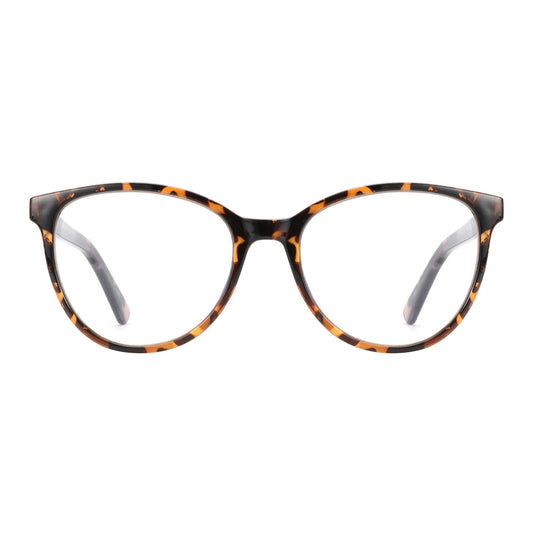
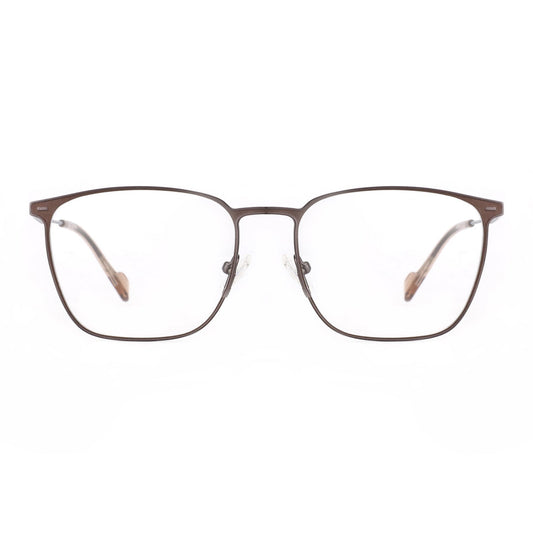
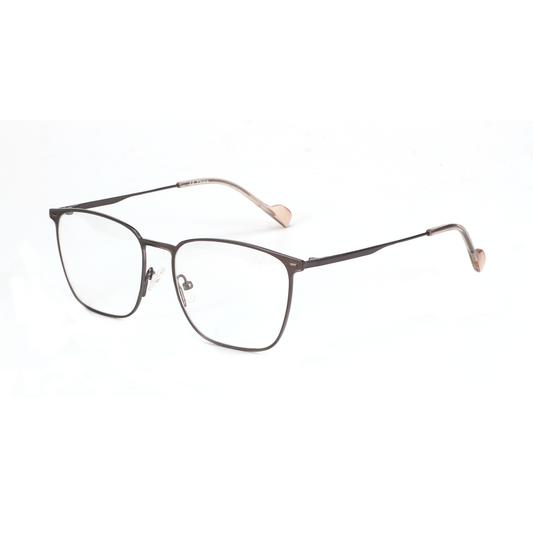
You can check your frame width by looking for the measurements printed on the inside of the temple arm. For help reading them, see our guide to total frame width and temple length. If your frames sit low on your nose, our guide to bridge width and nose pads explains how frames rest on the face.
Compare the Result Before Changing Another Factor
Use a simple routine so your results mean something:
- Write down your usual setup: room temperature, where the headset was stored, the type of game, and when fog starts.
- Change one temperature or airflow factor, such as warming the headset first or adding a fan.
- Play a similar session and note whether fog starts later, clears faster, or doesn't change.
- Keep the change if it helped. Undo it if it didn't.
- Test one fit change, like headset angle or eye relief, the same way.

This isn't a lab test, and no single step is guaranteed to fix it. It shows you what works for your face, frames, and headset. If warming up helps but adjusting fit doesn't, you can focus on temperature from then on.
Check Cleaning and Anti-Fog Product Compatibility
Use a cleaner or anti-fog product only when the instructions for every surface it will touch allow it. Clean lenses can help, since Meta notes that oils and debris can make fogging more likely. But the wrong product can damage coatings.
Follow the Instructions for Each Surface
Your glasses and your headset have different coatings and materials. Follow your eyeglass lens or coating maker's directions for your glasses. Follow your headset manual for the headset. If either source doesn't clearly allow a product, skip it.
Also be careful with spray and wipe residue. A product applied to your glasses shouldn't drip or rub onto the headset lenses or padding unless the headset maker allows that too. For everyday care, our guide to cleaning coated eyeglasses walks through a gentle routine.
Keep the Quest Headset Warning in Scope
Meta warns not to use anti-fog solution or wipes on Meta Quest headset lenses because they can damage the lenses and the material around them. For those lenses, Meta recommends a dry microfiber cloth after each use. Meta also says never to use water, alcohol, or other chemical cleaners on them.
This warning covers Quest headset lenses only. It doesn't say whether a product is safe or unsafe for your prescription glasses. That answer has to come from your lens maker or optician.
FAQs
Why do my glasses fog up only at the start of a VR session?
That pattern points to temperature. Warm breath hits lenses that are still cooler than the air around them. Meta says headset-lens fog usually clears as temperatures even out. Warming the headset to room temperature before you play is a good first test.
Can I use anti-fog spray on glasses I wear in a VR headset?
Only if your eyeglass lens or coating maker allows it, and the product won't touch headset surfaces your headset maker hasn't approved. On Meta Quest headset lenses, Meta says not to use anti-fog solution or wipes at all.
Will a glasses spacer fix fogging?
It may help. Meta says the spacer creates more room for air between the lenses and your face, but it isn't promised as a cure. For Meta's Quest spacer, frames must be 142 mm wide or less and 50 mm tall or less. Test it the same way you'd test any other change.
Does a fan really help with glasses fog in VR?
Meta suggests pointing a household fan at you and the headset during vigorous play to improve airflow and cut moisture buildup. That advice was written for headset lenses. Try it for one session and see whether your glasses stay clear longer.
